Converting a PDF to Markdown on a Mac splits into two completely different problems, and which one you have decides every other choice. If the PDF has a text layer, the job is layout reconstruction and a local Python tool does it in a second. If the PDF is a scan, there is no text to extract and every text-based converter will hand you an empty file, correctly and without an error message.
I ran three PDFs through three tools to show the split: MarkItDown 0.1.7 (Microsoft's converter, the one the Obsidian and LocalLLaMA threads keep naming), Apple's Vision recognizer, and ZenOCR in AI mode running GLM-OCR locally. Every output below is verbatim, including the case where Apple Vision, the free engine, beat the local model.
First, work out which kind of PDF you have
Open it in Preview and try to select a sentence. If words highlight, there is a text layer and you have a digital PDF. If nothing highlights, the page is an image and you have a scan.
You can also check from the command line, which is more reliable than squinting:
python3 -c "from pdfminer.high_level import extract_text; print(len(extract_text('file.pdf', maxpages=1).strip()))"
Zero means a scan. On the nine sample PDFs I keep for testing, eight report between 990 and 4,370 characters. One reports 0, and that one is a photograph of a form.
What goes wrong, in the words of people it went wrong for
The r/ObsidianMD complaint is consistent and it is about cleanup, not failure. One post opens "If you've ever dropped a PDF into your vault and then spent 15 minutes cleaning up the Markdown, fixing broken lines, lost headings, and stray footers"; another asks whether anyone has "found a workflow or a tool that actually handles complex layouts without needing 20 minutes of manual cleanup per page", and gets the reply "It's true, I haven't found a reliable one-shot converter for complex PDFs."
On MarkItDown specifically, a commenter in r/LocalLLaMA gives the fair defence: "markitdown is a text extractor so it'll always collapse tables and scramble floating boxes, that's expected." That is right, and it is the point. It is doing its job. Its job is not the job most people want done.
Three PDFs, three tools
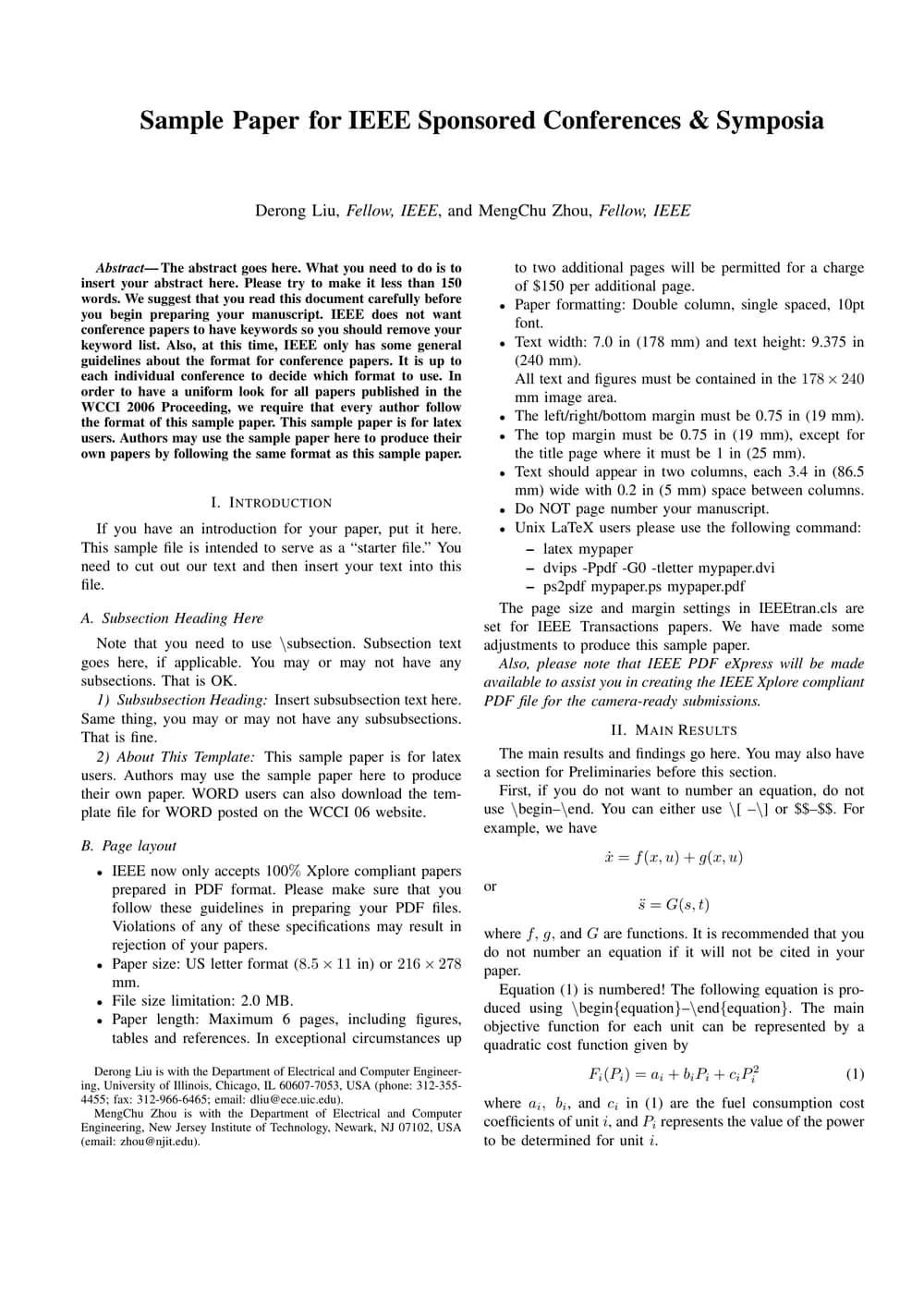
PDF 1: a two-column academic paper, with a text layer
|     |     |     |     | Derong | Liu, | Fellow, | IEEE, and | MengChu | Zhou, | Fellow, | IEEE  |
| --- | --- | --- | --- | ------ | ---- | ------- | --------- | ------- | ----- | ------- | ----- |
|     |     |     |     |        |      |         |           | to      | two additional | | pages |

Abstract—Theabstractgoeshere.Whatyouneedtodoisto
insert your abstract here. Please try to make it
Author line became a 16-column table. Word spacing lost on the first line. Text from the second column injected into the first.
Sample Paper for IEEE Sponsored Conferences & Symposia
Derong Liu, Fellow, IEEE, and MengChu Zhou, Fellow, IEEE
Abstract— The abstract goes here. What you need to do is to
insert your abstract here. Please try to make it less than 150
words.
Correct, and it kept the two columns in reading order. But it is plain text: no headings, no structure.
Sample Paper for IEEE Sponsored Conferences & Symposia

Derong Liu, Fellow, IEEE, and MengChu Zhou, Fellow, IEEE

Abstract—The abstract goes here. What you need to do is insert your abstract here. Please try to make it less than 150 words. We suggest that you read this document carefully before you prepare your manuscript. ... This sample paper is for latex users. Authentic use of the sample paper here to produce their own papers by following the same format as this sample paper.

I. INTRODUCTION
Paragraphs and headings correct. Three small rewrites: "is insert" for "is to insert", "before you prepare" for "before you begin preparing", and "Authentic use of" where the page reads "Authors may use".
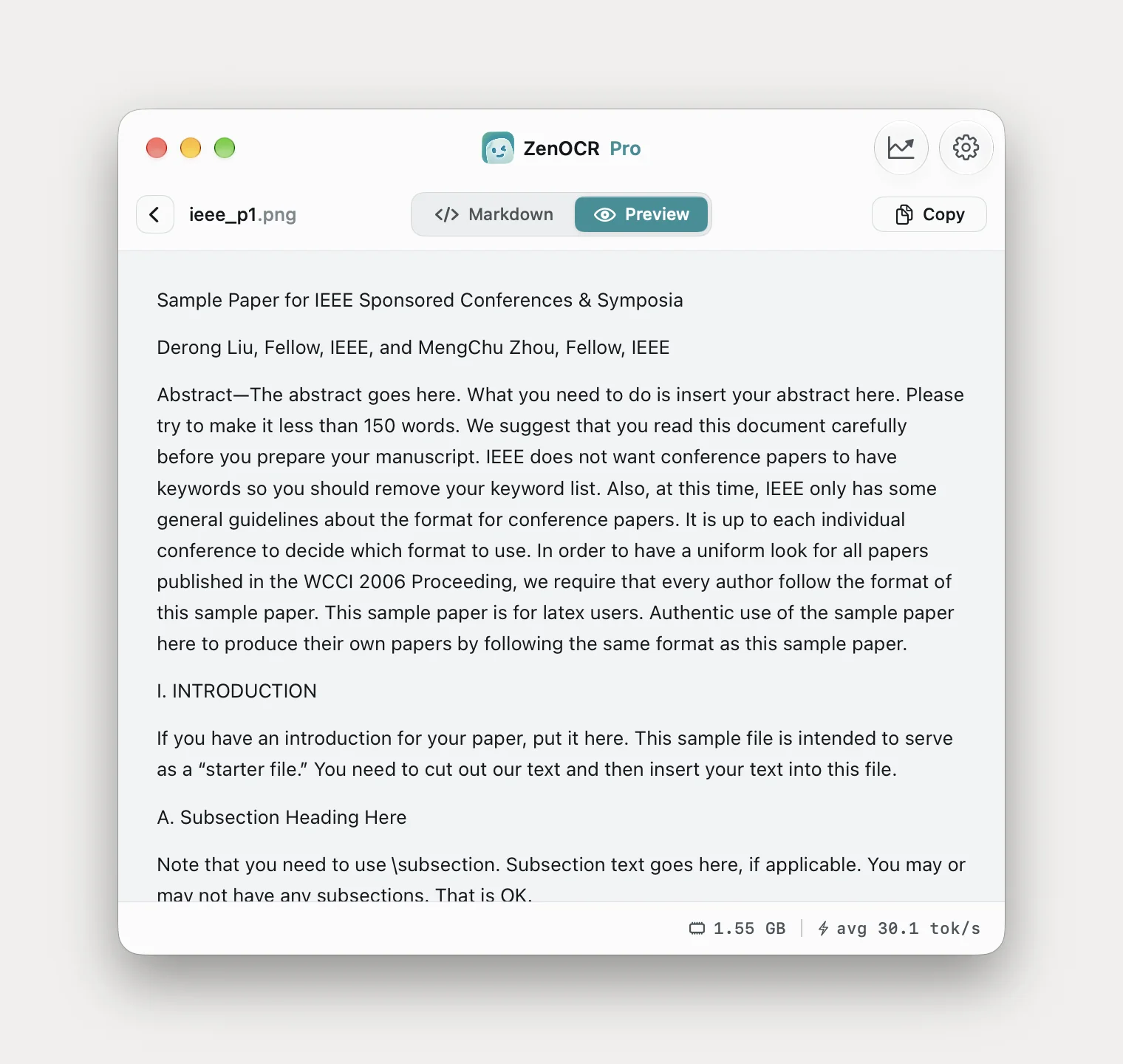
The interesting result is the middle column. Apple Vision, free and already on your Mac, read this paper more accurately than either of the other two. What it will not give you is Markdown. There is no ## in front of "I. INTRODUCTION", because Vision does not know it is a heading.
That is the honest trade for a digital PDF with simple structure: run it through Vision or a text extractor and clean it up, or run a model that gives you structure and accept that a model sometimes rewrites a phrase into one that reads just as well.
PDF 2: tables
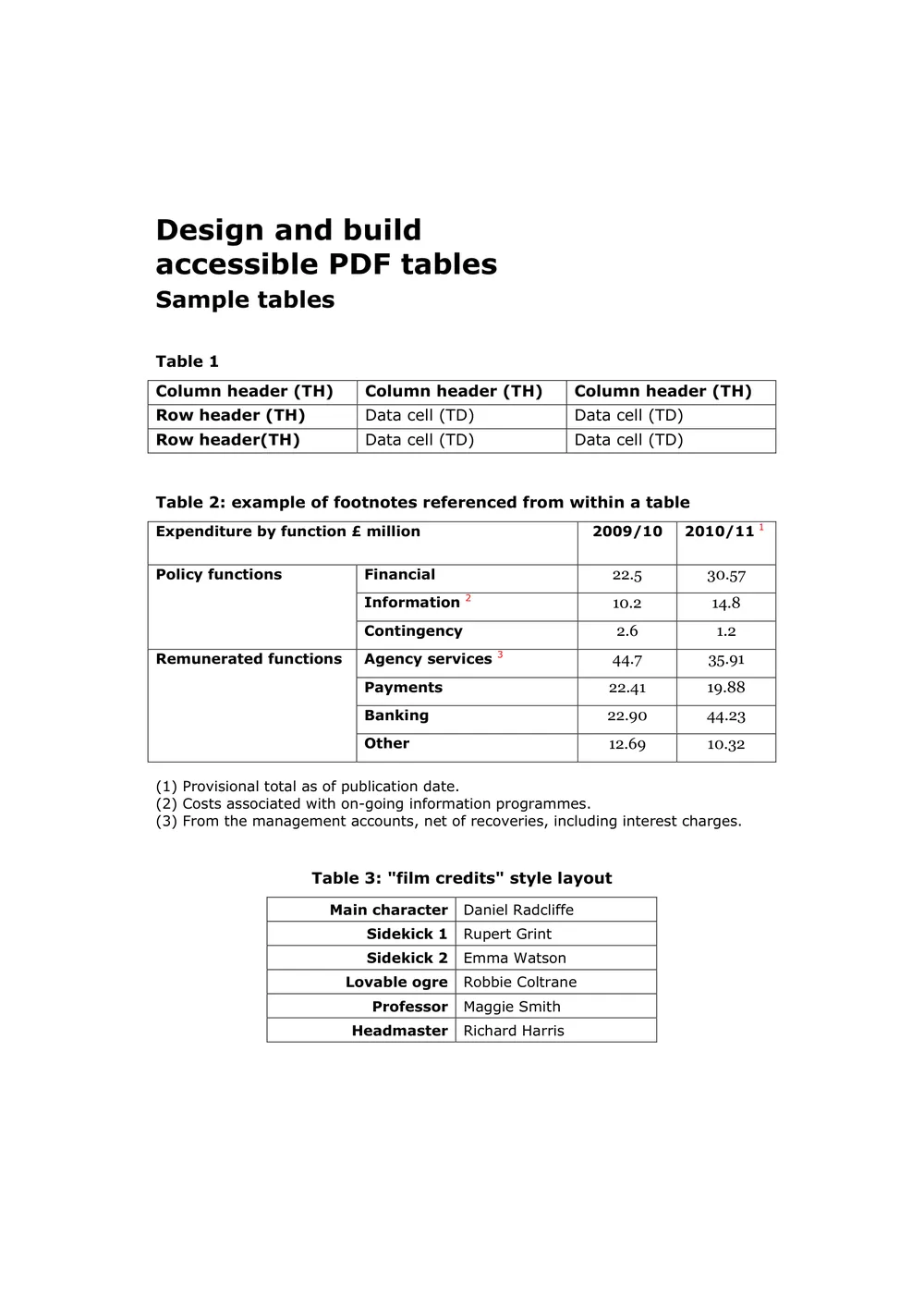
Table 2: example of footnotes referenced from within a table
2010/11 1
| Expenditure by function £ million  |            | 2009/10  |        |
| ---------------------------------- | ---------- | -------- | ------ |
| Policy functions                   | Financial  | 22.5     | 30.57  |
Information 2
|                        |                    | 10.2   | 14.8   |
| ---------------------- | ------------------ | ------ | ------ |
The 2010/11 header escaped the table. The body split into two separate tables. Footnote markers became stray lines.
<table><tr><td colspan="2">Expenditure by function £ million</td><td>2009/10</td><td>2010/11 \( {}^{1} \)</td></tr><tr><td rowspan="3">Policy functions</td><td>Financial</td><td>22.5</td><td>30.57</td></tr><tr><td>Information \( {}^{2} \)</td><td>10.2</td><td>14.8</td></tr><tr><td>Contingency</td><td>2.6</td><td>1.2</td></tr><tr><td rowspan="4">Remunerated functions</td><td>Agency services \( {}^{3} \)</td><td>44.7</td><td>35.91</td></tr><tr><td>Payments</td><td>22.41</td><td>19.88</td></tr><tr><td>Banking</td><td>22.90</td><td>44.23</td></tr><tr><td>Other</td><td>12.69</td><td>10.32</td></tr></table>Correct throughout: colspan on the two-level header, rowspan on both group labels, and the three footnote markers as real superscripts rather than stray lines.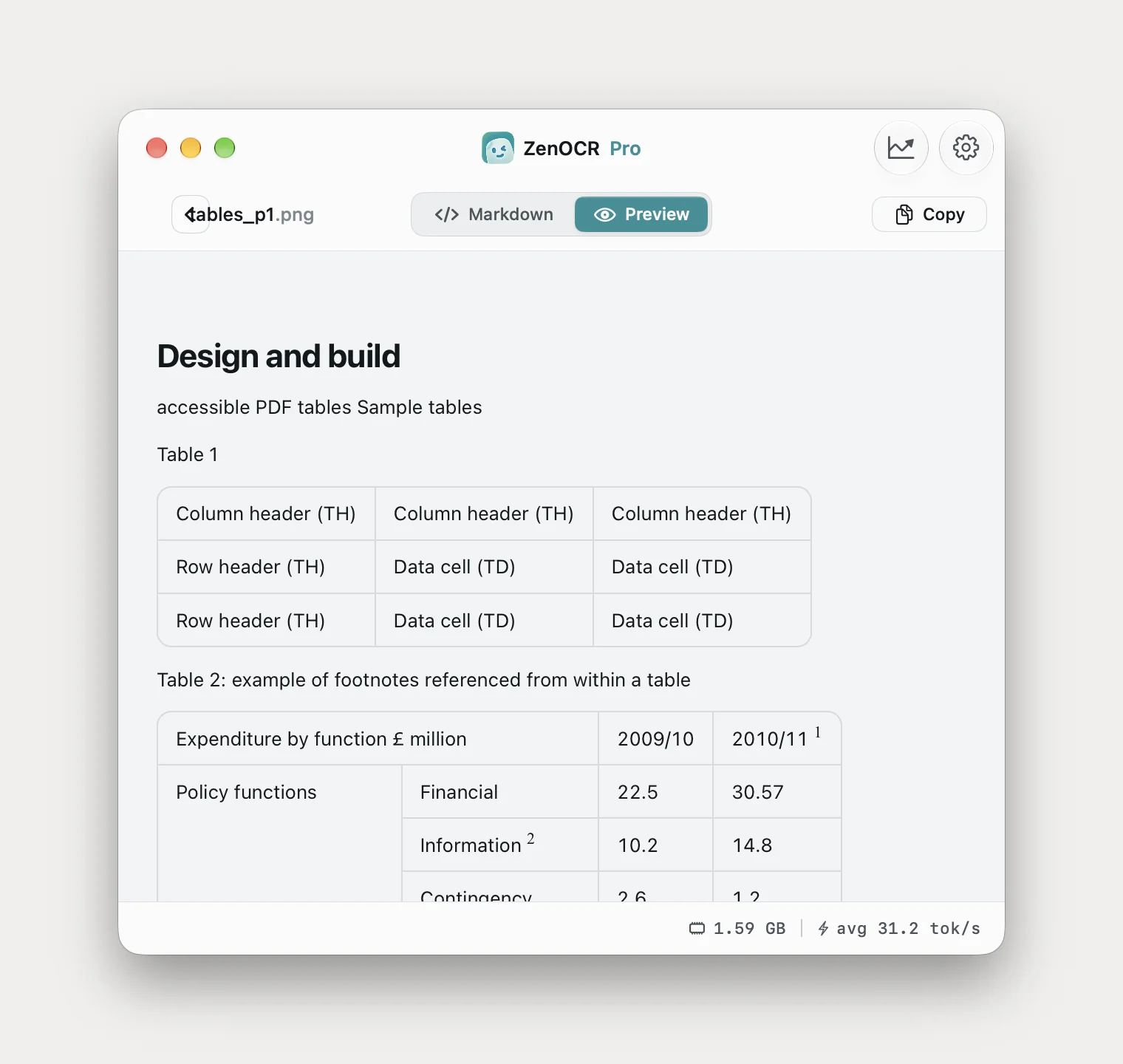
The two-level header is the part that separates these. MarkItDown has to guess where a column boundary sits and guesses wrong, so the header escapes and the body splits. DeepSeek-OCR-2 sees a header cell that spans two columns and writes colspan="2", which is what the page actually does.
Worth knowing for tables: the output above is HTML rather than Markdown, because Markdown tables cannot express a merged cell at all. If you paste into Numbers or Excel it arrives as a real grid either way. If you are pasting into a Markdown file, turn off Keep formatting when copying in Settings so you get the markup rather than a rich-text flattening of it.
PDF 3: the scan, where text extraction returns nothing
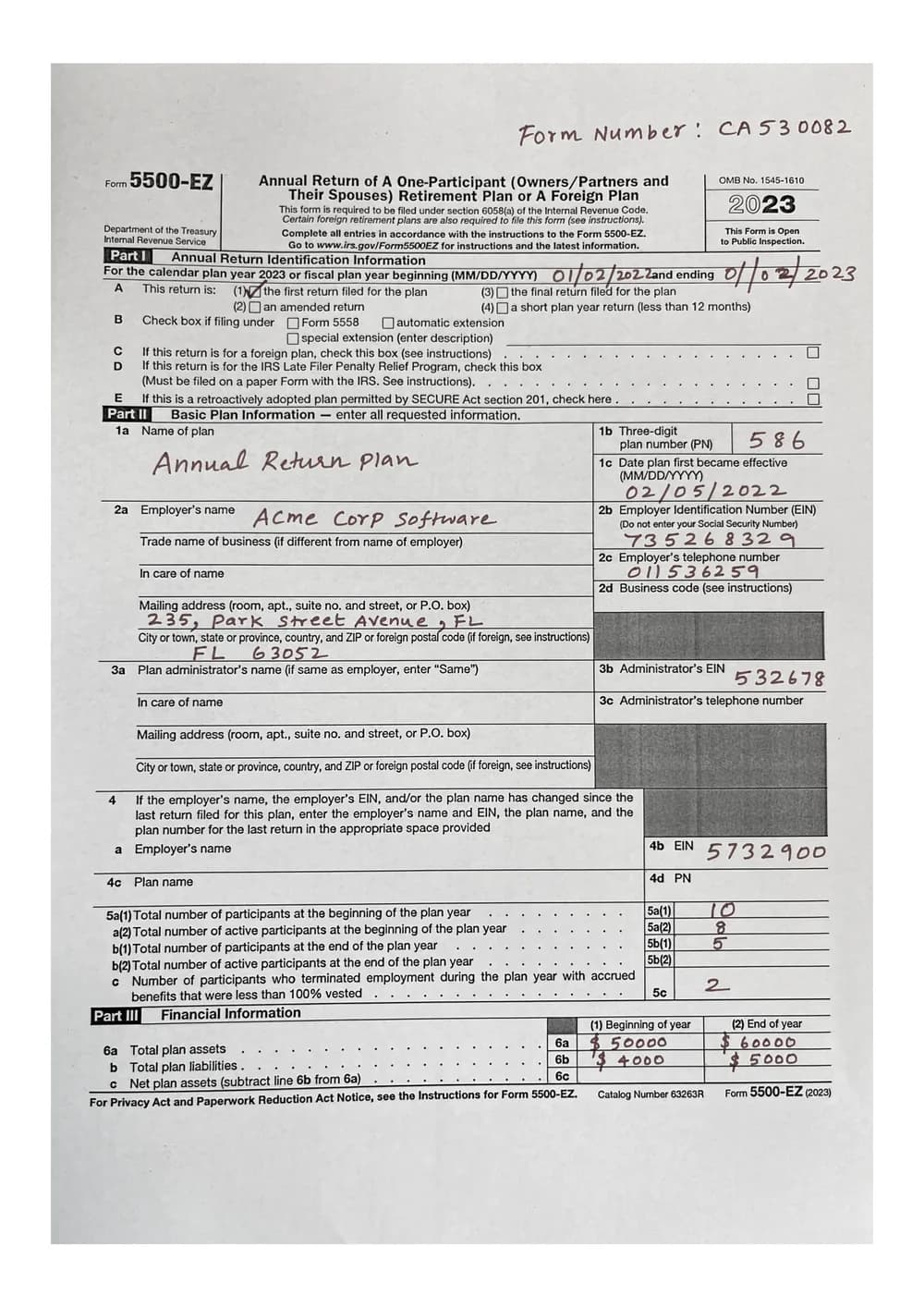
The output file is one byte: a single newline. No error, no warning, exit code 0.
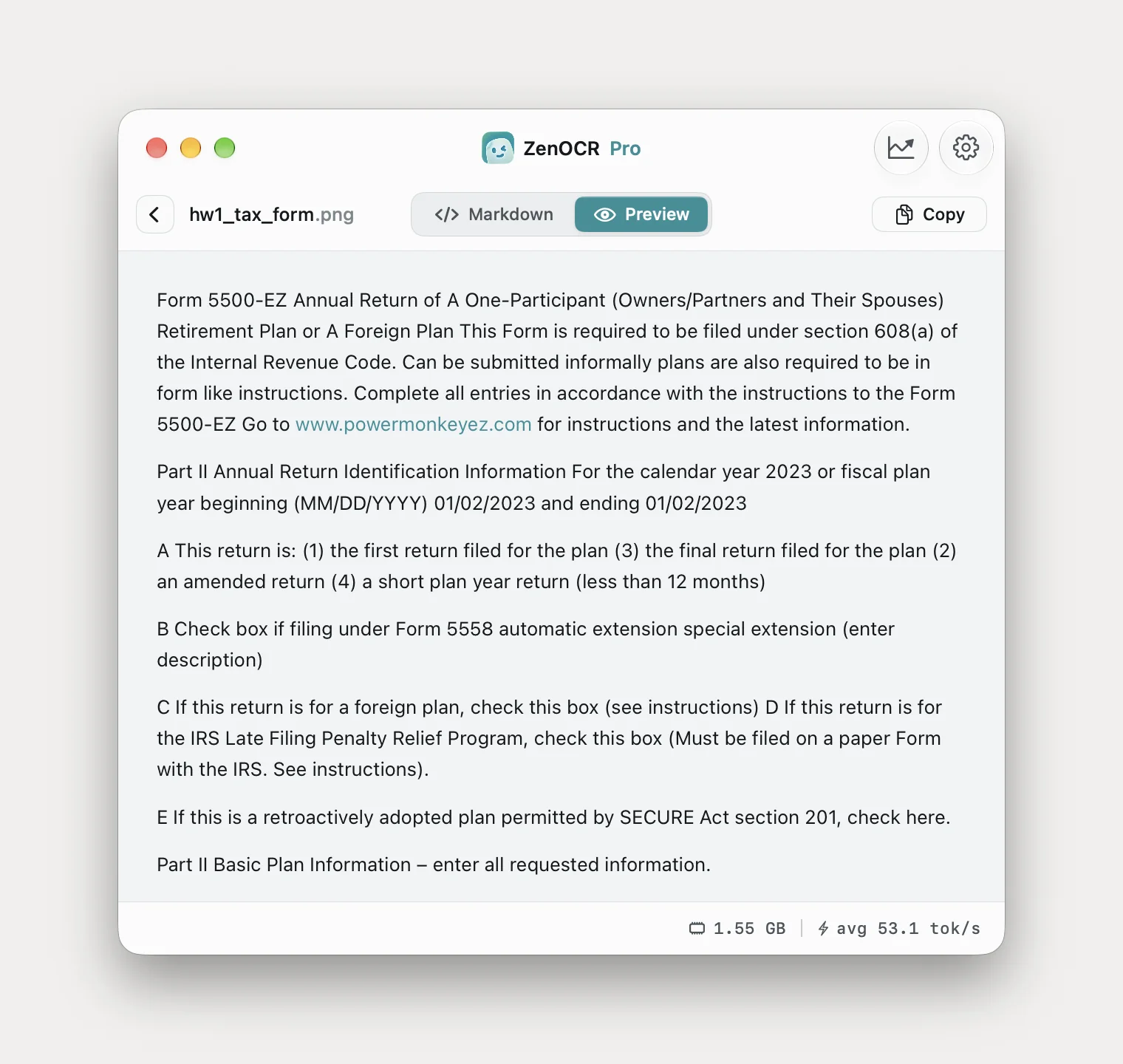
Part II Basic Plan Information – enter all requested information.

1a Name of plan
Annual Return Plan

1b Three-digit plan number (PN) 586

2a Employer's name Acme Corp Software

2b Employer Identification Number (EIN)
735268329
Read the printed form and the handwritten values, and kept them paired. One date field misread.
One byte, out of MarkItDown. That is the single most useful thing to know about converting PDFs to Markdown, because it is the failure that does not look like a failure. Every online converter behaves the same way on a scan, since they are running the same kind of extraction on a server. If a converter gave you an empty note and you assumed the tool was broken, it was not; your PDF had no text in it.
Doing this on a Mac
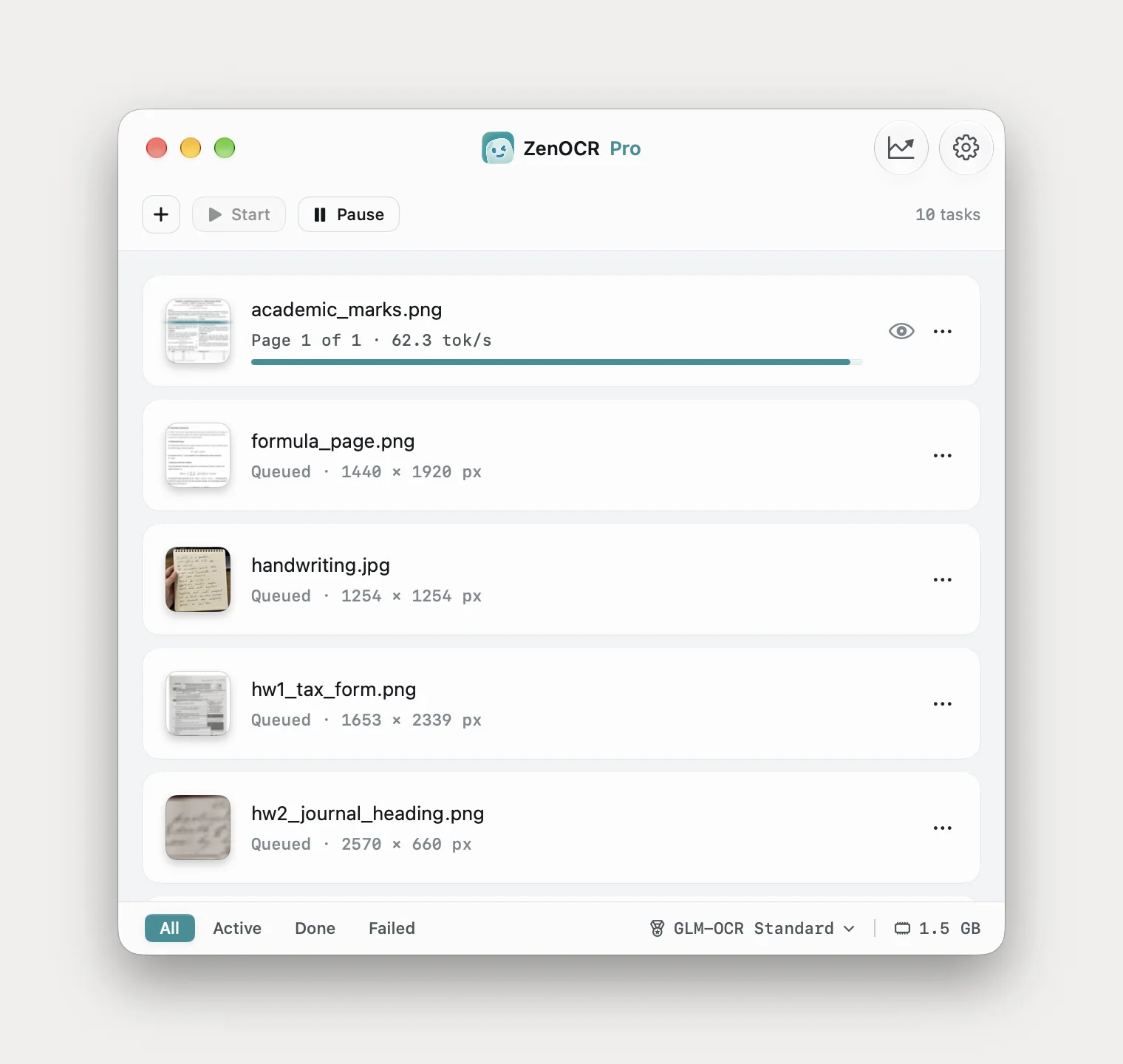
Drop the PDFs onto ZenOCR, check that the model selector at the bottom is on a GLM-OCR build rather than Fast mode, and press Start. Multi-page PDFs run as one job and files queue behind each other, so a folder of papers goes in as a batch.
Dropping a PDF straight into your Obsidian vault
There is no ZenOCR plugin for Obsidian, and there is no Notion integration. What there is: the output folder is configurable, so point it at a folder inside your vault and the Markdown file appears in Obsidian as a new note as soon as the conversion finishes. If you keep a Sources/ or Inbox/ folder, that is where to point it. Obsidian picks up the file on its own; nothing has to be installed on the Obsidian side.
Which tool for which PDF
| Your PDF | Use |
|---|---|
| Digital, single column, plain prose | MarkItDown. Free, local, instant. Do not pay for anything. |
| Digital, two columns, no tables | Apple Vision through a script, then add headings by hand |
| Digital, with tables or equations | A local vision-language model, then check every table |
| Scanned or photographed | OCR is mandatory. A text extractor returns nothing at all |
| Confidential, any of the above | Whichever local option fits. The point is that no file leaves the machine |
What this app cannot do
- No Obsidian plugin, no Notion integration. A configurable output folder is not an integration. See above.
- It converts, it does not edit. Markdown and text come out; nothing is written back into the PDF. So it is not the way to get a searchable PDF (that is Preview's Embed Text, covered in the Preview article) and not a merging, redacting or form-filling tool.
- macOS 14 or later, Apple Silicon for AI mode. No Windows, no iPad, no web version.
- Check the output against the page. The two-column paper above came back with a clause rewritten into something fluent that the page does not say. Structure survives more reliably than wording does.
The short version
If your PDFs have text layers and simple layouts, MarkItDown is free and good and this article should not talk you into anything else. The moment tables, two-column academic layouts, equations or scans enter the picture, a text extractor stops being the right shape of tool, and the question becomes whether the pages can go to a server or have to stay on your machine.
Related: handwriting OCR on a Mac for the cursive case, PDF to LaTeX if the equations matter more than the prose, and what Preview already does for free. The app itself is on the ZenOCR homepage.