Preview has OCR, and for a clean printed scan it is genuinely good enough. Two features do the work: Live Text lets you select and copy words straight off a page image, and File > Export with "Embed Text" writes a real text layer into a copy of the PDF so Spotlight and Cmd-F can find it. Neither costs anything and neither uploads your file.
The reason people go looking for something else is narrower than "Preview is bad". It is that Apple's recognizer reads letter shapes without reading the page, so it stays accurate right up until the page stops being ordinary printed text, and then it fails without telling you. Below are the exact steps for both Preview features, the four situations where they break, and three pages I ran through Preview's engine and a local AI OCR model side by side so you can see the difference rather than take my word for it.
Live Text: selecting words out of a page image
Open the file in Preview. Hover over a word. If the pointer turns into an I-beam, Live Text has already recognized the page and you can drag-select and copy exactly as you would in a text document. If the pointer stays an arrow, click Tools > Text Selection first, or check that Live Text is enabled at all in System Settings > General > Language & Region.
That is the entire feature. It is fast, it runs on the machine, and for a typed letter or a standard form it is usually all anyone needs.
Embed Text: making a scanned PDF actually searchable
Live Text is temporary. The words you select are recognized on the fly and thrown away when you close the file, which is why a PDF that felt searchable in Preview turns up nothing in Spotlight. To make the text permanent, choose File > Export, tick Embed Text, and save. macOS recognizes every page and writes an invisible text layer into the new PDF.
This is worth knowing because it is the one job Preview does that most OCR apps do not. ZenOCR, the app I build, cannot do it. It outputs text and Markdown, and it never writes a text layer back into a PDF file. If what you want is a PDF that is still a PDF but has become Cmd-F searchable, Preview's Embed Text or Adobe Acrobat are the honest answers, and this article is not going to try to talk you out of them.
Why Live Text does nothing on your PDF
Five things account for almost every "Preview OCR not working" report:
- The file is not open in Preview or Quick Look. Live Text is a feature of those viewers, not of the PDF. Open the same file in Chrome or in a third-party reader and the text is unselectable again.
- Live Text is switched off. System Settings > General > Language & Region has a Live Text toggle. It is on by default and people turn it off, sometimes to stop a rendering bug where scanned pages develop black blotches on zoom, reported in r/techsupport.
- The scan is too low-resolution or too skewed. Recognition accuracy falls off a cliff below roughly 200 dpi, and a photographed page shot at an angle is worse than a flatbed scan at the same resolution.
- The writing is cursive. See the next section.
- There is nothing to recognize. If the PDF already has a text layer and selection still does nothing, the problem is the file's encoding, not OCR.
There is also a confusing edge case worth knowing about, reported in r/MacOS on macOS 26: text that appears selectable in Preview but is not embedded, so you cannot tell from Preview alone which of your PDFs are actually searchable.
Three pages, Preview's engine against a local AI model
For each page below I ran Apple's Vision recognizer directly (VNRecognizeTextRequest, revision 3, accurate mode, language correction on) rather than clicking around in Preview, so the runs are reproducible. Vision is the recognizer Live Text is built on, and it is also what ZenOCR's free Fast mode uses. The other column is ZenOCR in AI mode, running GLM-OCR locally on an M2 MacBook Air. AI mode is the paid tier, available during the 7-day trial.
Page 1: handwriting from 1833
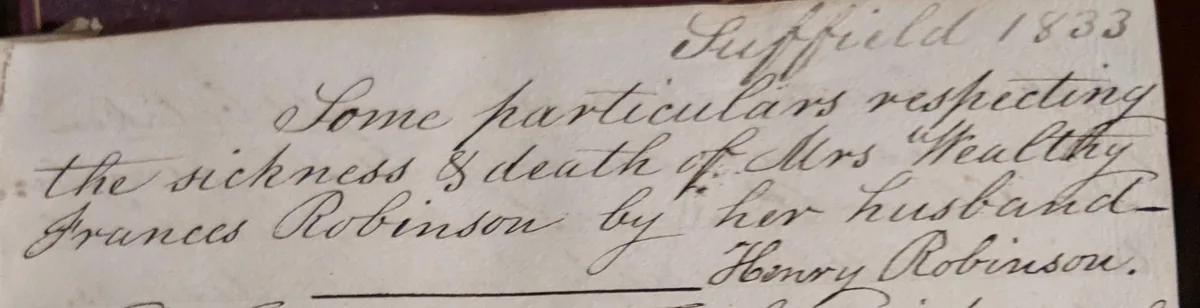
Suppula 1803
tome particulars respiding
The sickness S death of Mrs Health
Frances Robinson by
ay her husband
Henry Robinson.
Every proper noun and the date are wrong. Unusable.
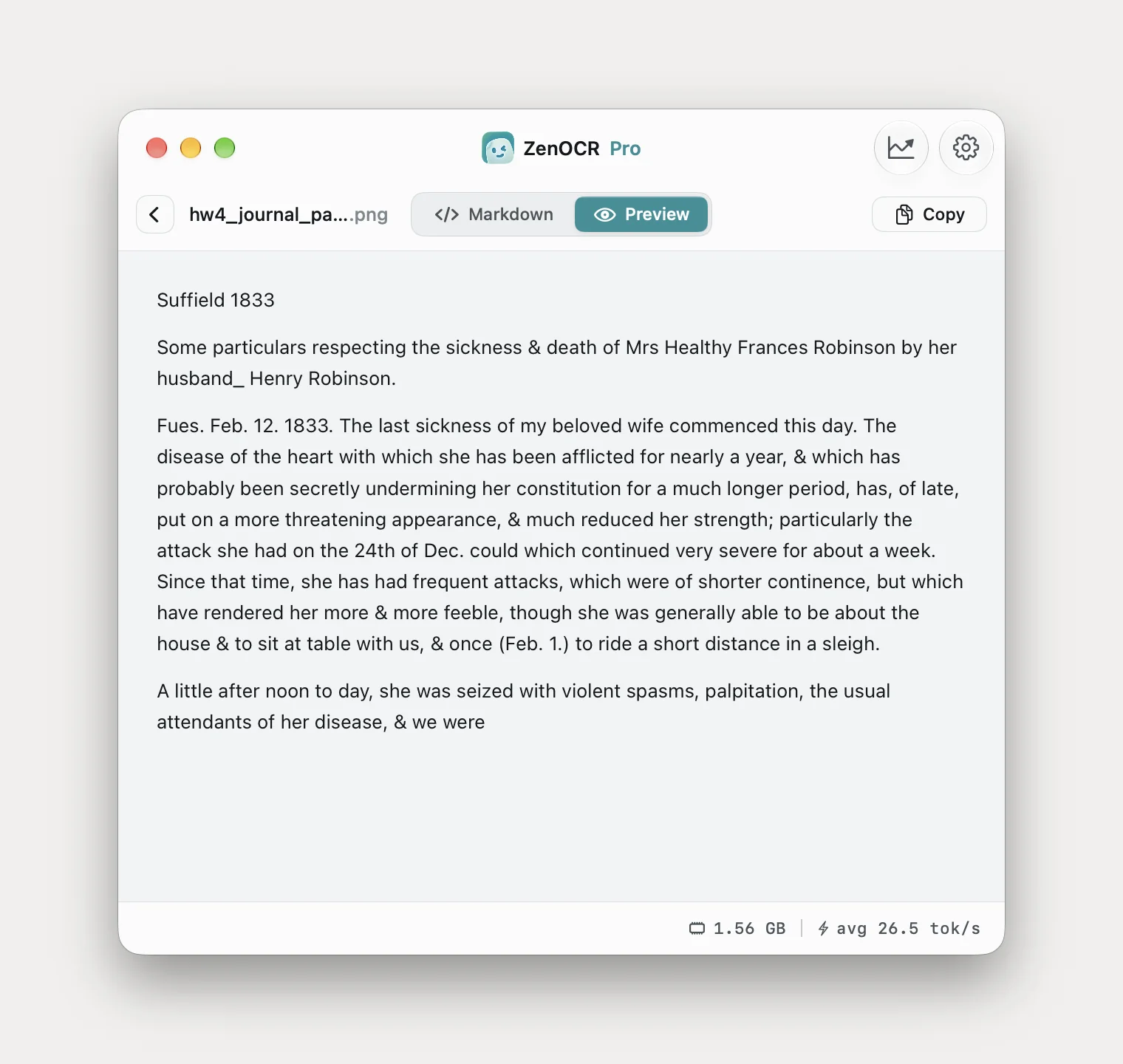
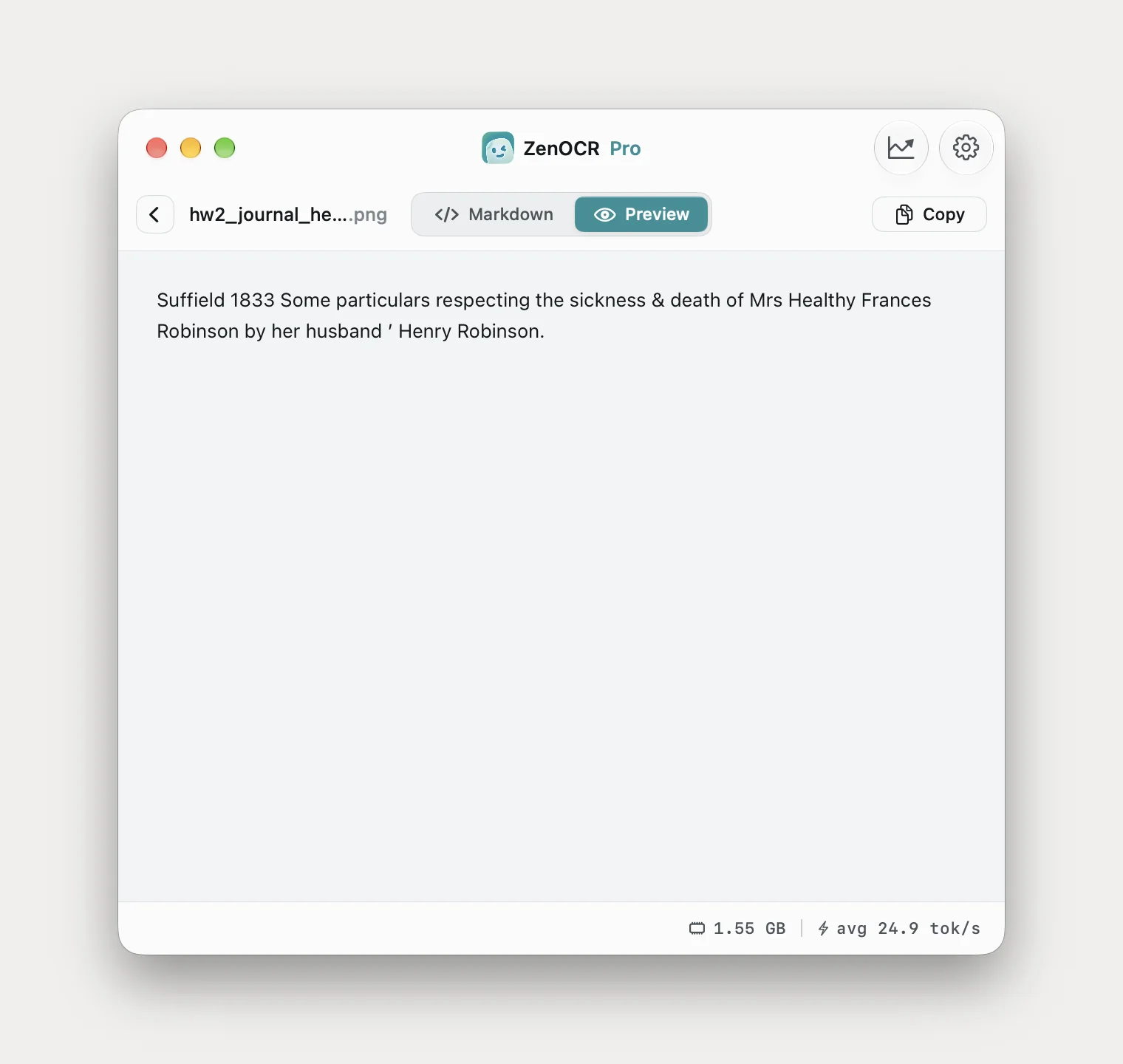
Suffield 1833
Some particulars respecting
the sickness & death of Mrs Healthy
Frances Robinson by her husband
' Henry Robinson.
One error: "Healthy" for "Wealthy". Plus a stray apostrophe.
Preview turns "Suffield 1833" into "Suppula 1803". That is not a transcription with errors in it, it is a different document.
Page 2: a page of equations
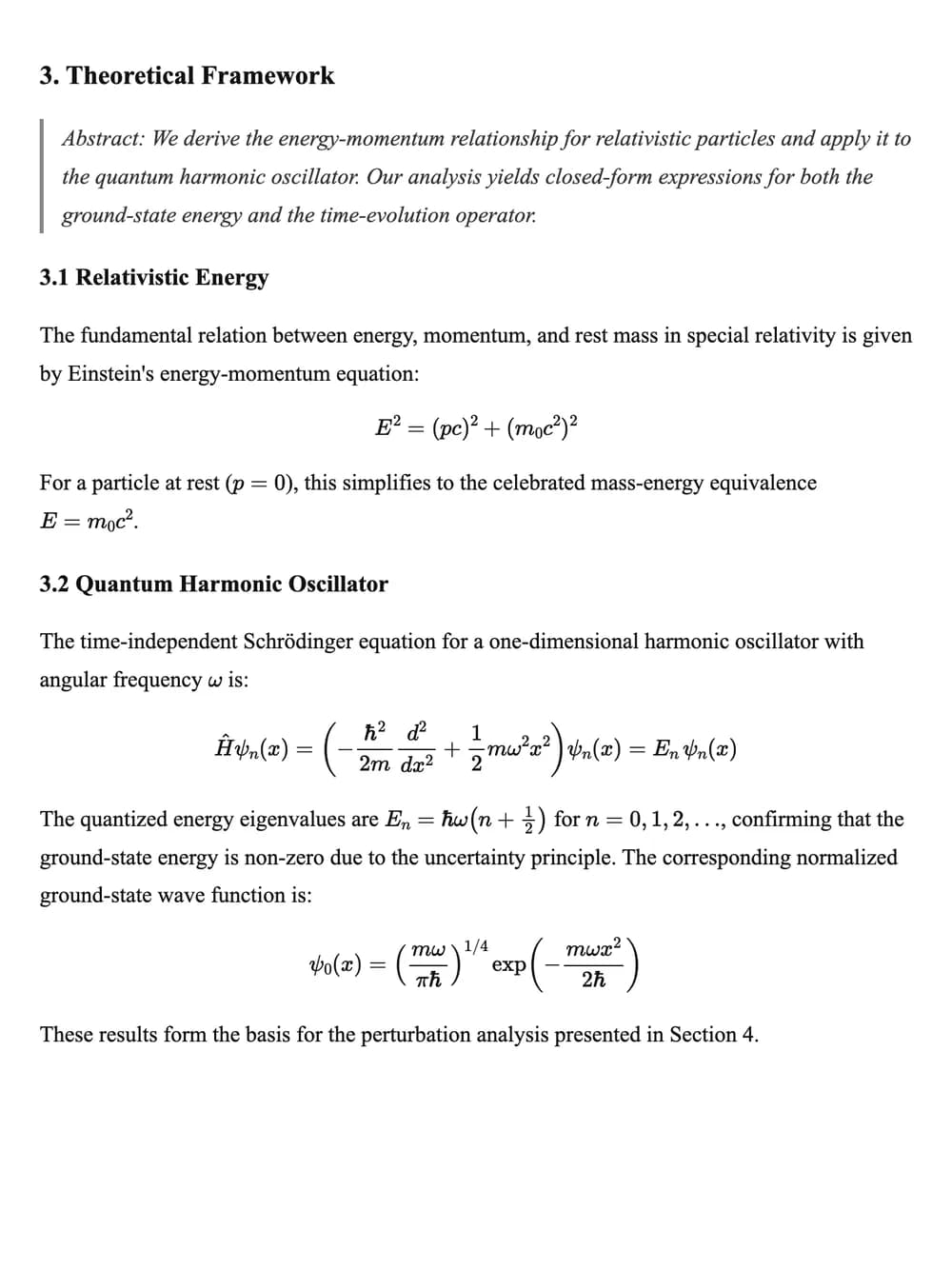
E? = (pc)?+ (moc?)?

E=moc.

Yo(2) = (ne) '4
exp -"
mwx?
Superscripts become question marks. The Schrodinger equation was dropped entirely.
$$E^2 = (pc)^2 + \left(m_0 c^2\right)^2$$

$$E = m_0 c^2.$$

$$\hat{H} \psi_n(x) = \left(-\frac{\hbar^2}{2m} \frac{d^2}{dx^2} + \frac{1}{2} m \omega^2 x^2\right) \psi_n(x) = E_n \psi_n(x)$$

$$\psi_0(x) = \left(\frac{m \omega}{\pi \hbar}\right)^{1/4} \exp\left(-\frac{m \omega x^2}{2 \hbar}\right)$$
All four equations correct, delimiters included, and the inline maths in the prose too.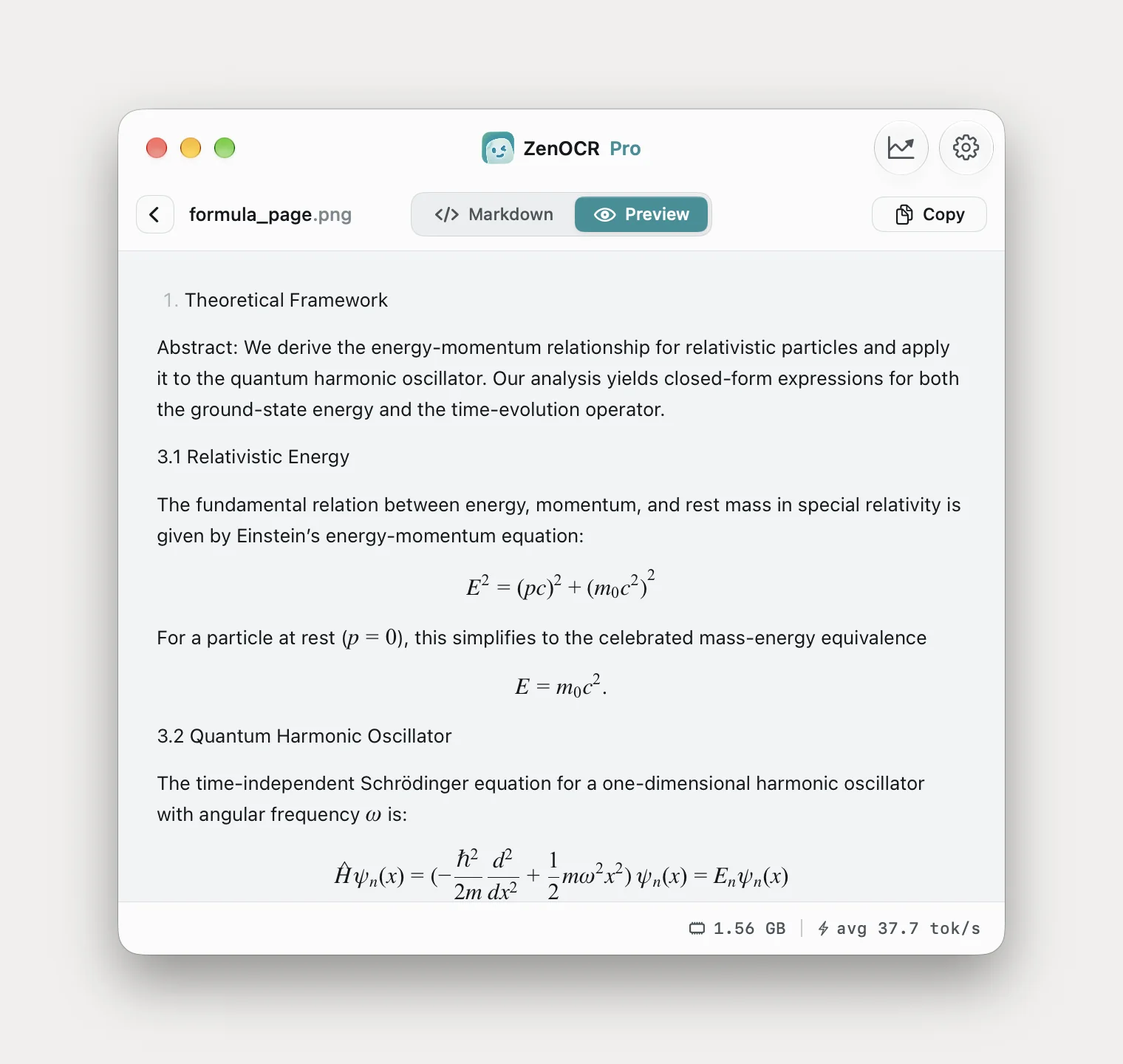
Look at what the two columns are doing. Preview is describing the ink of an equation with the nearest available punctuation, which is how E² = (pc)² + (m₀c²)² becomes E? = (pc)?+ (moc?)?. GLM-OCR writes the equation in the notation such things are normally written in, which happens to be LaTeX, and it pastes into a note app or a .tex file without editing.
Page 3: a dense statistical table, where Preview loses the numbers
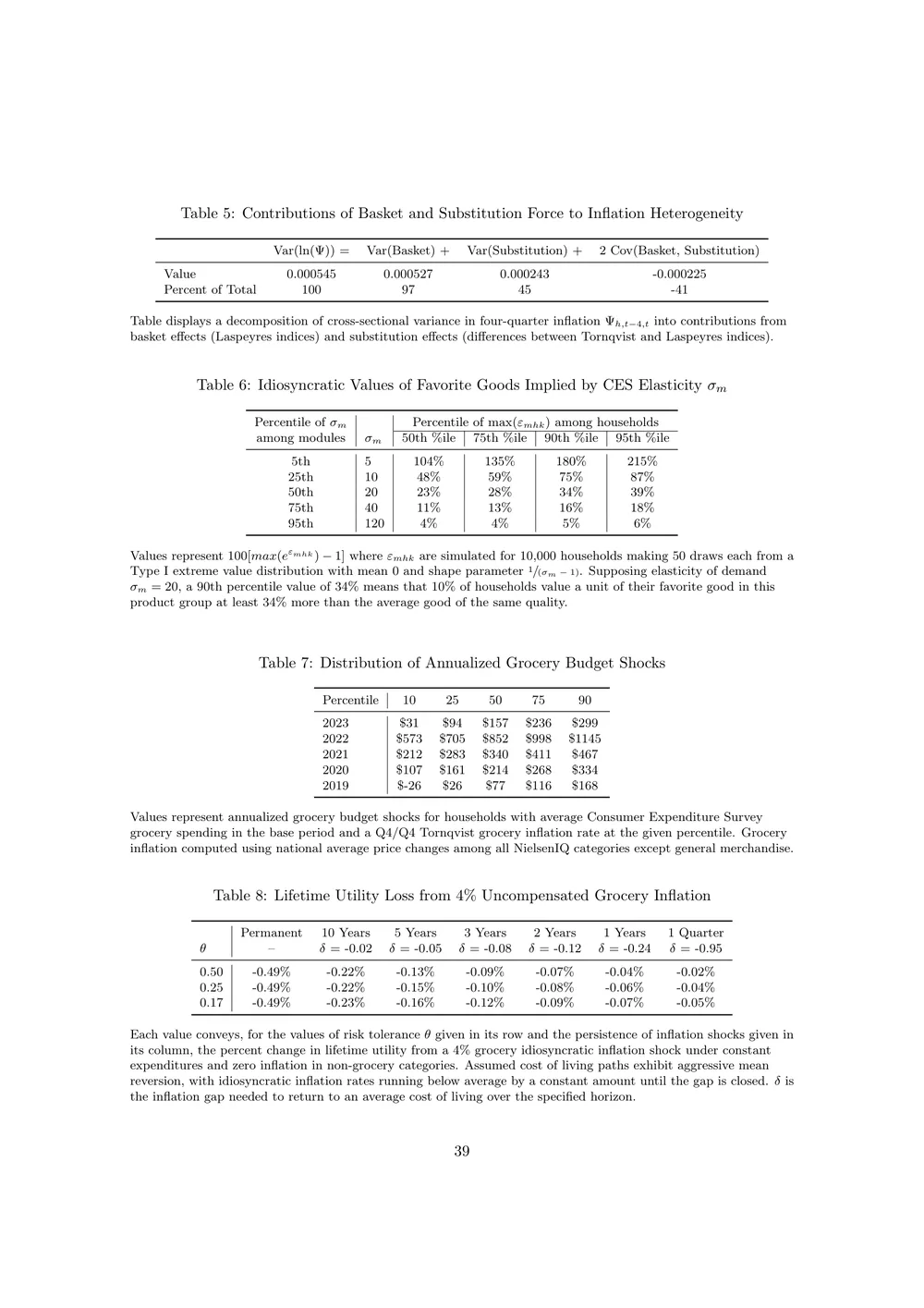
Var(In(#)) =
Var (Basket) +
0000515
0.00527
Var(Substitution) + 2 Cov(Basket, Substitution)
0-000213
-0.000225
-41
Values and their column headers are separated. Nothing can be reconstructed.
Table 5: Contributions of Basket and Substitution Force to Inflation Heterogeneity

<table><tr><td></td><td>Var(ln( $\Psi$ )) =</td><td>Var(Basket) +</td><td>Var(Substitution) +</td><td>2 Cov(Basket, Substitution)</td></tr><tr><td>Value</td><td>0.000545</td><td>0.000527</td><td>0.000243</td><td>-0.000225</td></tr><tr><td>Percent of Total</td><td>100</td><td>97</td><td>45</td><td>-41</td></tr></table>
Caption, header formula and both data rows, every figure correct, inline maths kept as LaTeX.
Preview's output here is not repairable: the figures are corrupted and detached from the headers that give them meaning. DeepSeek-OCR-2, the model used for this page, rebuilt the table with the numbers in the right cells.
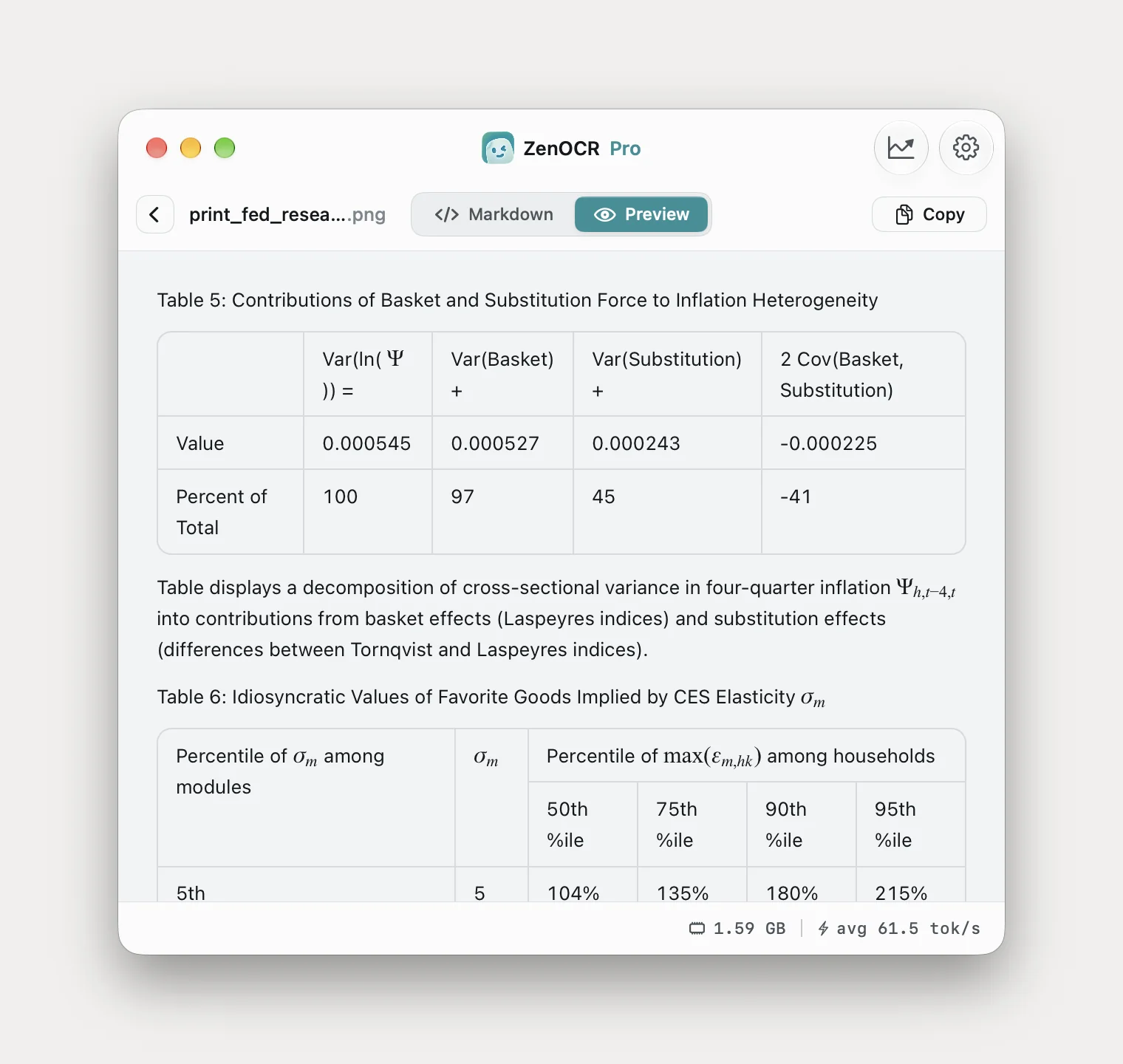
DeepSeek-OCR-2 did the same for the three tables below this one on the page, including a percentile matrix whose header spans four columns.
Two things had to be right for that. The model has to be DeepSeek-OCR-2 rather than the other one in the picker, because dense typeset tables are what it is labelled for. And the page has to be scanned at 300 DPI rather than 150, because that model is fed close to the native image and a dense table stops being legible when you halve it. Get either wrong and this page comes back approximate.
Why this happens: reading letters against reading the page
Vision, Tesseract and ABBYY all work the same way underneath. They cut the image into character-shaped regions and match each region against learned glyph patterns. There is no model of the page: no notion that this line is a heading, that these three columns belong to one table, that a raised digit after a word is a footnote rather than an exponent. When the glyphs are clean and separated, matching shapes is enough and the results are excellent. When letters run together in cursive, or a table has no ruled lines, or a scan is degraded, there is nothing to fall back on and the recognizer guesses per character.
The models in ZenOCR's AI mode are vision-language models, which means they were trained to look at the whole page image and describe it in text. In practice they establish the layout first, then reconstruct the words using a language model's sense of what words normally follow each other. That is why "Some particulars respecting" survives a page of joined-up copperplate: the shapes alone are ambiguous, but very little else fits the context.
The same mechanism is what produces the errors. A model that leans on plausibility will occasionally hand you something plausible instead of something true, which is exactly what "Mrs Healthy" is.
What this app still cannot do
Everything Preview does that it does not, since this article has spent a while on where Preview falls short:
- No searchable PDF. ZenOCR outputs text and Markdown and never writes a text layer back into a PDF. Preview's Embed Text, described above, is the free answer. Acrobat is the paid one.
- Not a PDF editor either. No annotating, redacting, merging, form filling or signing. Preview does all of those.
- macOS 14 or later, Apple Silicon for AI mode. No Windows, no iPad, no web version, and an Intel Mac cannot run the AI models.
- Not 100 percent accurate. The handwritten page above came back with a name misread, and it is the kind of mistake that reads as if it were right.
So when should you stop using Preview
Keep using Preview when the page is typed, reasonably well scanned, in a Latin script, and laid out in one column. That covers a large share of everyday documents, and paying for anything else would be a waste.
Reach for a dedicated OCR app when the page is handwritten, when it carries mathematics you need as LaTeX, when the layout is multi-column or tabular and you need the structure preserved, or when you need Markdown out the other end rather than a wall of copied text. Those are the cases where the gap is not a few percent of accuracy but the difference between a usable result and a page of noise.
Handwriting OCR on a Mac goes deeper on the cursive case, with four samples and a model that gives up on one of them. Converting PDFs to Markdown offline covers the note-taking and LLM workflow. The app itself is described on the ZenOCR homepage.